
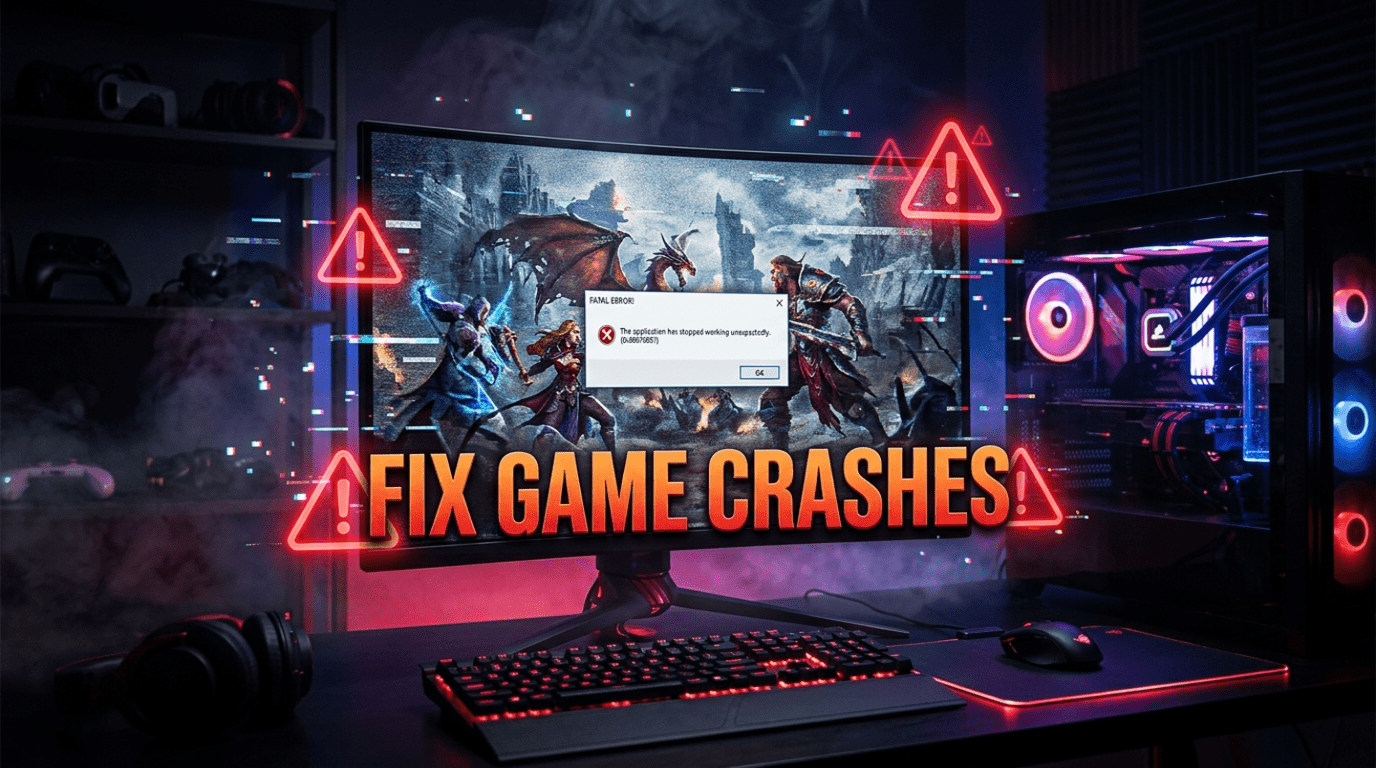
If you’ve been searching for how to fix game crashes on PC, you’re not alone. Game crashes are one of the most frustrating problems PC gamers face — especially when they happen in the middle of gameplay or right at launch. The good news is that most crashes are caused by common and fixable issues like outdated drivers, corrupted files, overheating, or software conflicts.
PC gaming gives you incredible performance, flexibility, and graphics quality—but it also comes with one common frustration: random game crashes. One moment you’re playing smoothly, and the next you’re staring at the desktop with no explanation.
In this complete troubleshooting guide, you’ll learn how to fix game crashes on PC step-by-step, from quick fixes to advanced solutions that stabilize your system and prevent crashes permanently.
Why Do PC Games Crash?
Before jumping into fixes, it helps to understand what usually causes crashes. In most cases, crashes happen due to one of these issues:
- Outdated graphics drivers
- Corrupted game files
- Overheating hardware
- Insufficient RAM or storage
- Software conflicts and overlays
- Overclocking instability
- Missing system files or dependencies
Now let’s fix them one by one.
Step 1: Restart Your PC (Yes, Really)
It sounds simple, but a full restart fixes more crashes than you’d expect. Background services, stuck processes, and memory leaks often cause instability.
Restarting clears temporary files and resets system resources. Always try this before moving to advanced fixes.
Step 2: Check Minimum & Recommended Requirements
A game crashing immediately after launch often means your PC doesn’t meet the requirements.
Check the game’s store page and compare:
- CPU
- GPU
- RAM
- Storage
- Operating system version
Running below minimum specs can cause crashes instead of low performance.
Step 3: Update Graphics Drivers
Outdated GPU drivers are the #1 cause of PC game crashes.
Graphics drivers are constantly updated to support new games and fix bugs. If your drivers are old, crashes are extremely likely.
Update NVIDIA drivers
Download the latest drivers from NVIDIA and perform a clean installation.
Update AMD drivers
Get the newest version from AMD and install the Adrenalin software package.
After updating, restart your PC before launching the game again.
Step 4: Update Windows
Many games rely on the latest Windows patches and system libraries.
Open Settings → Windows Update → Check for updates and install everything available.
Keeping your system updated ensures compatibility with modern games and fixes hidden bugs from Microsoft.
Step 5: Verify Game Files (Essential Fix)
Game files can become corrupted due to incomplete downloads, crashes, or disk errors.
If you use Steam:
- Open Library
- Right-click the game
- Click Properties → Installed Files
- Select “Verify integrity of game files”
This replaces damaged or missing files automatically. The feature is provided by Valve Corporation and solves many crash issues instantly.
Step 6: Disable Overlays
Overlays often conflict with games and cause crashes at launch or during gameplay.
Disable these overlays temporarily:
- Steam overlay
- Discord overlay
- NVIDIA GeForce overlay
- Xbox Game Bar
Try running the game again after disabling them.
Step 7: Close Background Apps
Heavy background apps consume RAM and CPU resources, leading to crashes.
Close:
- Browsers with many tabs
- Recording/streaming apps
- RGB control software
- Antivirus scans
Open Task Manager and end unnecessary processes before launching the game.
Step 8: Check for Overheating
Overheating can cause sudden crashes with no error messages.
Signs of overheating:
- Fans running loudly
- Game crashes after 10–20 minutes
- PC becomes hot to touch
- Sudden shutdowns
Fix overheating
- Clean dust from fans and vents
- Ensure proper airflow
- Replace thermal paste if old
- Avoid playing on soft surfaces (like beds)
Monitor temperatures:
- CPU safe range: below 85°C
- GPU safe range: below 80°C
Step 9: Remove Overclocking
Overclocking boosts performance but often causes instability in games.
If you overclocked:
- CPU
- GPU
- RAM (XMP/EXPO)
Reset BIOS settings to default and test the game again. Many “random” crashes disappear instantly after removing overclocks.
Step 10: Install Missing Game Dependencies
Many games need additional software to run properly.
Install or reinstall:
- DirectX runtime
- Visual C++ Redistributables
- .NET Framework
Most games include these in their installation folders under:_CommonRedist
Run each installer manually to ensure nothing is missing.
Step 11: Check Storage Health & Free Space
Low disk space can cause crashes during loading or autosaving.
Ensure:
- At least 20–30GB free space
- Game installed on healthy drive
- Prefer SSD over HDD for modern games
If using an HDD, try defragmenting the drive.
Step 12: Run the Game as Administrator
Permission issues can cause crashes at startup.
Right-click the game’s executable → Properties → Compatibility → Check “Run as administrator”.
This grants full system access and often fixes launch crashes.
Step 13: Disable Fullscreen Optimization
Windows fullscreen optimization sometimes causes instability.
- Right-click game .exe
- Open Properties → Compatibility
- Check “Disable fullscreen optimizations”
Launch the game again and test.
Step 14: Increase Virtual Memory (Pagefile)
Games with high RAM usage may crash if virtual memory is too low.
Increase pagefile size
- Search “Advanced system settings”
- Open Performance Settings → Advanced
- Click Virtual Memory → Change
- Set custom size:
- Initial: 1.5× RAM
- Maximum: 3× RAM
Restart PC after applying changes.
Step 15: Reinstall the Game
If nothing works, reinstalling ensures a clean setup.
Uninstall the game completely, then reinstall it on a different drive if possible. This removes hidden corrupted files and registry errors.
Step 16: Update BIOS (Advanced Fix)
If crashes persist across multiple games, your motherboard BIOS may be outdated.
BIOS updates improve:
- CPU compatibility
- RAM stability
- Power management
Only update BIOS if you’re comfortable doing it carefully.
Step 17: Test RAM for Errors
Faulty RAM can cause frequent crashes, freezes, and blue screens.
Use Windows Memory Diagnostic:
- Search “Memory Diagnostic”
- Restart and scan
If errors appear, RAM replacement may be required.
Step 18: Check Power Supply Issues
Sudden crashes under heavy load can indicate a weak or failing PSU.
Signs:
- PC shuts off during intense gameplay
- Crashes when GPU usage spikes
- Random restarts
High-end GPUs require strong, stable power delivery.
Step 19: Scan for Malware
Malware can interfere with game files and system processes.
Run a full system scan using Windows Security or trusted antivirus software.
Step 20: Check Game-Specific Fixes
Some games have known crash issues. Search for:
- Official patches
- Community fixes
- Launch options
Examples:
- Run with DirectX 11 instead of 12
- Disable ray tracing
- Launch in windowed mode
Game forums often provide fixes for specific crash bugs.
Quick Crash Troubleshooting Checklist
If you want a quick summary, run through this checklist:
- Restart PC
- Update GPU drivers
- Update Windows
- Verify game files
- Disable overlays
- Close background apps
- Check temperatures
- Remove overclocking
- Install missing dependencies
- Ensure enough disk space
- Run as administrator
- Increase virtual memory
- Reinstall game
This fixes most crashes in under an hour.
Final Thoughts
Game crashes on PC can feel frustrating, but they’re rarely permanent problems. If you’re learning how to fix game crashes on PC, the good news is that most crashes happen because of outdated drivers, corrupted files, overheating, or software conflicts — all of which are fixable.
The key to how to fix game crashes on PC is to troubleshoot step by step instead of trying random fixes. Start with simple solutions like updates and file verification, then move toward advanced checks like RAM testing and BIOS updates.
Once your system is stable, PC gaming becomes the powerful and smooth experience it’s meant to be. With the steps in this guide, you should be able to diagnose and fix almost any game crash you encounter.
Update your Nvidia Driver or AMD Drivers To get better performance
If you also play on mobile, don’t miss our guide on Best Apps to Boost Gaming Performance on Android to improve FPS and reduce lag.
One Comment