
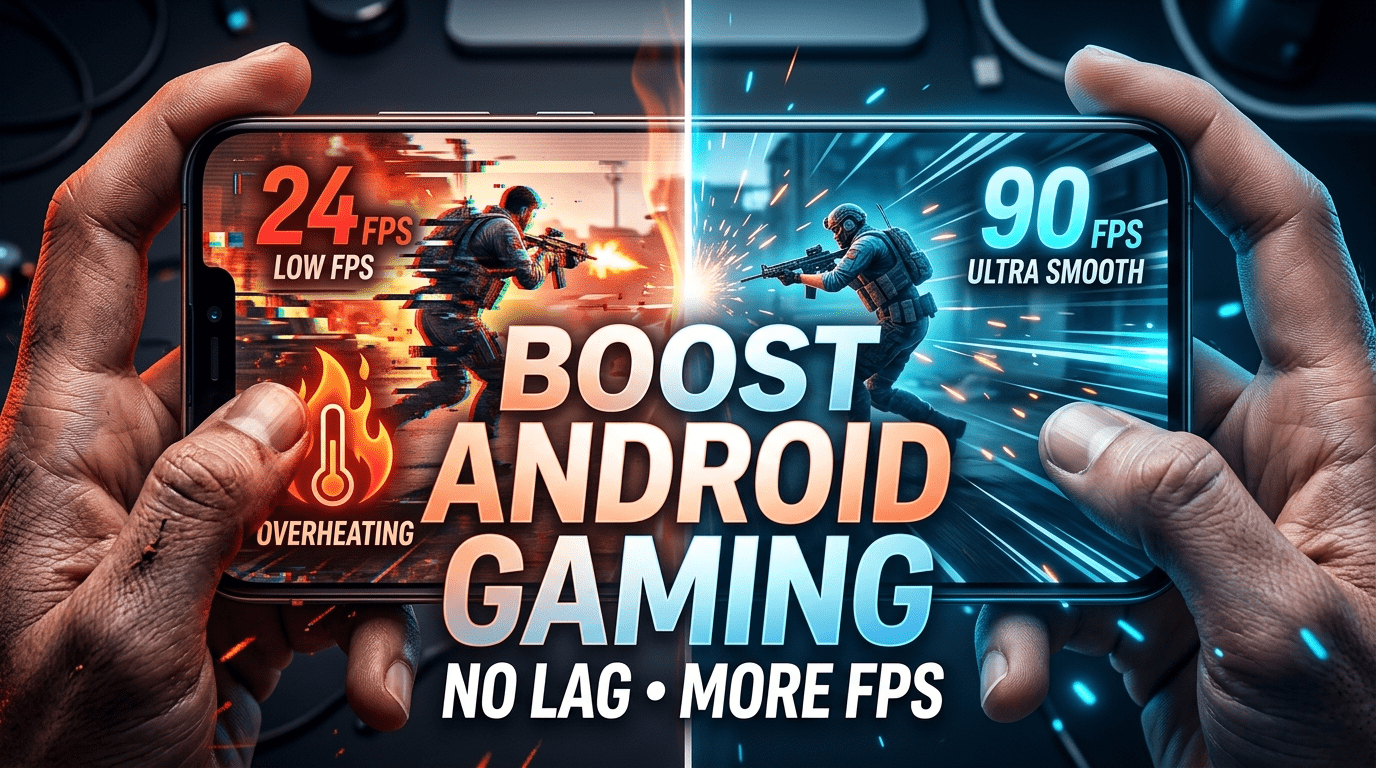
Mobile gamers often struggle with lag, overheating, and frame drops. The right tools can make a huge difference. In this guide, you’ll discover the best apps to boost gaming performance on Android and learn how to get smoother gameplay, higher FPS, and longer gaming sessions without upgrading your phone.
In this guide, you’ll discover the best apps to boost gaming performance on Android, how they work, and which ones are worth installing in 2026.
Why You Need Gaming Booster Apps
Android is an open operating system, which means multiple apps and processes run in the background. Even when you don’t see them, they still consume:
- RAM
- CPU power
- Network bandwidth
- Battery life
Gaming apps are heavy and need maximum resources. Gaming booster apps temporarily stop unnecessary processes and dedicate power to your game.
Benefits of gaming booster apps:
- Higher FPS
- Reduced lag and stuttering
- Lower device temperature
- Improved battery efficiency
- Stable internet connection
Think of these apps as “turbo mode” for your phone.
How Gaming Booster Apps Work
Most gaming booster apps optimize performance using several techniques:
RAM cleaning
They close background apps and free memory before launching a game.
CPU & GPU optimization
They allocate more processing power to the game.
Network optimization
They prioritize gaming traffic to reduce ping.
Temperature control
They monitor heat and limit processes causing overheating.
Do Not Disturb mode
They block notifications and calls during gameplay.
Now let’s explore the best apps available on the Google Play.
Best Apps to Boost Gaming Performance on Android
1. Game Booster (Built-in or Third-Party)
Many Android phones already include a built-in Game Booster. If your phone doesn’t have one, third-party versions work extremely well.
Key Features
- Clears RAM instantly
- Blocks notifications
- Locks screen brightness
- Monitors FPS and temperature
- Enables performance mode
Why it’s useful
It provides one-tap optimization before launching games. This alone can noticeably improve performance.
Best for: Beginners who want simple optimization.
2. GFX Tool for Graphics Optimization
GFX tools are extremely popular among competitive mobile gamers. These apps unlock hidden graphics settings and allow you to control resolution, FPS, and visual effects.
Key Features
- Unlock 60/90/120 FPS modes
- Adjust render resolution
- Disable shadows and effects
- Reduce lag and stuttering
Why it’s useful
Some games limit graphics settings depending on your device. GFX tools remove these limits and allow performance-focused configurations.
Best for: Competitive gamers who want maximum FPS.
3. Gaming Mode – The All-in-One Booster
Gaming Mode apps combine multiple optimization features into one dashboard.
Key Features
- Automatic RAM cleaner
- Call and notification blocker
- Network booster
- Brightness and volume lock
- Floating performance monitor
Why it’s useful
It automates optimization so you don’t have to manually close apps before gaming.
Best for: Daily gamers who want an all-in-one solution.
4. CPU Throttling Test & Performance Monitor Apps
Some apps don’t boost performance directly but help you understand your phone’s limits.
Key Features
- Monitor CPU performance over time
- Detect thermal throttling
- Show temperature and power usage
- Identify overheating issues
Why it’s useful
Many performance problems happen because of heat. Once you understand your phone’s limits, you can adjust settings to avoid throttling.
Best for: Advanced users and tech enthusiasts.
5. Net Optimizer – Reduce Ping and Network Lag
Not all lag comes from graphics. High ping can ruin multiplayer games even on powerful devices.
Key Features
- Finds fastest DNS servers
- Improves connection stability
- Reduces packet loss
- Lowers ping in online games
Why it’s useful
A faster DNS connection improves response time in multiplayer games.
Best for: Online multiplayer gamers.
6. Greenify – Stop Background Apps Completely
Greenify is a legendary Android optimization app. It focuses on stopping apps that run secretly in the background.
Key Features
- Hibernates background apps
- Saves battery life
- Frees RAM automatically
- Prevents apps from restarting
Why it’s useful
Some apps constantly run even after closing them. Greenify stops them completely.
Best for: Phones slowing down due to many installed apps.
7. Game Plugins & System Tools (For Supported Phones)
Some brands provide official performance tools:
- Samsung Game Plugins
- Xiaomi Game Turbo
- OnePlus Gaming Mode
Key Features
- GPU monitoring
- Performance profiles
- Touch sensitivity boost
- FPS tracking
Why it’s useful
These tools are deeply integrated with the system, making them very effective.
Best for: Users who want official optimization tools.
Which App Should You Install?
Different users need different combinations.
For Budget Phones
Install:
- Game Booster
- Greenify
- Net Optimizer
Goal: Free RAM and reduce background usage.
For Mid-Range Phones
Install:
- Gaming Mode app
- GFX Tool
- Net Optimizer
Goal: Unlock FPS and improve network performance.
For Flagship Phones
Install:
- Gaming Mode app
- Performance monitor app
Goal: Maintain stability and control heat.
How to Use Gaming Booster Apps Properly
Simply installing these apps is not enough. You need to use them correctly.
Step 1: Clean RAM Before Gaming
Open your booster app and run memory cleaning before launching the game.
Step 2: Enable Do Not Disturb Mode
Notifications interrupt performance and can cause frame drops.
Step 3: Enable High Performance Mode
Most booster apps include a performance or gaming mode. Always enable it.
Step 4: Lock Brightness
Auto brightness constantly adjusts and consumes CPU power. Lock brightness manually.
Step 5: Monitor Temperature
If temperature rises too much, reduce graphics settings in-game.
Common Mistakes Gamers Make
Many gamers install booster apps but still face lag due to bad habits.
Playing While Charging
Charging generates heat and reduces performance.
Low Storage Space
Always keep at least 20% storage free.
Too Many Booster Apps
Installing multiple boosters can conflict. Use 1–2 good apps only.
Ignoring In-Game Settings
Booster apps work best when combined with optimized graphics settings.
Do Gaming Booster Apps Really Work?
Yes — but within limits.
They cannot turn a budget phone into a flagship device. However, they can:
- Improve stability
- Reduce background load
- Increase consistent FPS
- Prevent overheating
The biggest benefit is smoother and more stable gameplay.
Extra Tips to Maximize Gaming Performance
Combine booster apps with these habits:
- Restart phone before long gaming sessions
- Remove phone case to reduce heat
- Keep apps and games updated
- Use stable Wi-Fi connection
- Avoid playing in hot environments
Small improvements add up to big performance gains.
The Future of Android Gaming Optimization
Mobile gaming continues to grow rapidly. Developers now design games with performance scaling, adaptive resolution, and smarter resource management.
Future Android updates are expected to include:
- Better gaming modes
- Improved thermal management
- More powerful GPUs
- AI-based performance optimization
Gaming booster apps will continue to evolve alongside these improvements.
Final Thoughts
You don’t need an expensive smartphone to enjoy smooth gaming. With the right apps and smart optimization, even mid-range devices can deliver stable and enjoyable performance.
Gaming booster apps work best when combined with good habits, optimized graphics settings, and proper device care. Once you set up the right tools, you will notice reduced lag, better FPS, and longer gaming sessions without overheating.
If you are serious about mobile gaming, installing the right performance apps is one of the easiest upgrades you can make today.
Android game optimization tips are also recommended in official Android developer resources:
https://developer.android.com/games/optimize
Also read: Best Graphics Settings for Mobile Games for Smooth Gameplay


One Comment