
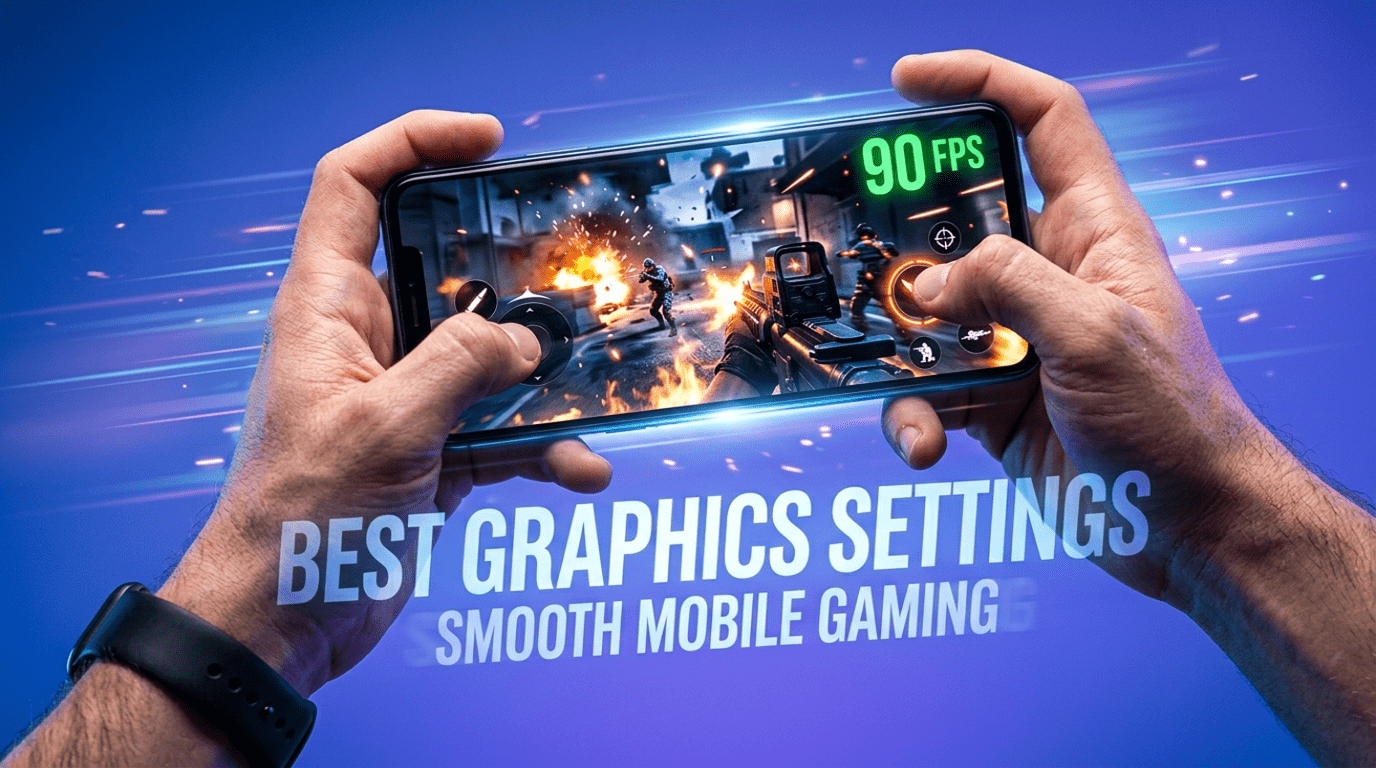
Mobile gaming has become more competitive than ever, and choosing the best graphics settings for mobile games can be the difference between winning and losing. Many players unknowingly use high graphics that cause lag, overheating, and frame drops. In this guide, you’ll learn how to optimize your settings for smoother gameplay, better FPS, and longer gaming sessions.
The truth is simple: the best settings are not always the highest settings. Smooth gameplay always beats ultra graphics when it comes to competitive and long gaming sessions.
This guide will help you understand how mobile graphics settings work and show the best settings for the most popular mobile games so you can get maximum FPS, stability, and battery efficiency.
Why Graphics Settings Matter in Mobile Gaming
Most modern mobile games allow players to control how the game looks and performs. These settings decide how much workload your phone’s GPU and CPU must handle.
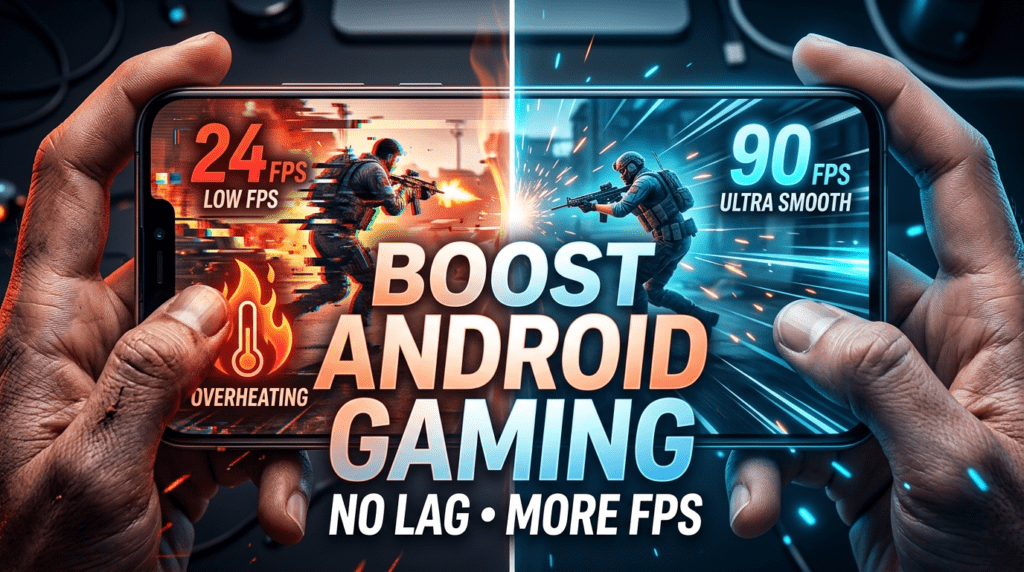
When graphics are too high for your device:
- FPS drops
- Device overheats
- Battery drains quickly
- Input lag increases
- Game becomes unstable during fights
When settings are optimized correctly:
- Gameplay becomes smoother
- Device stays cooler
- Battery lasts longer
- Competitive performance improves
Competitive players almost always choose performance over visuals.
Understanding Mobile Graphics Settings
Before jumping into game-specific settings, you need to understand what each option actually does.
Graphics Quality (Low / Medium / High / Ultra)
This controls textures, shadows, lighting, and visual effects.
Higher graphics:
- Better visuals
- Lower FPS
- More heat
Lower graphics:
- Higher FPS
- Less heat
- Better performance in fights
For smooth gameplay, Medium or Low is usually ideal.
Frame Rate (FPS)
This is the most important setting.
Common options:
- 30 FPS
- 40 FPS
- 60 FPS
- 90 FPS
- 120 FPS
Higher FPS means:
- Smoother movement
- Faster reaction time
- Competitive advantage
Always choose the highest FPS your phone supports.
FPS matters far more than graphics.
Shadows
Shadows are one of the biggest performance killers.
They look nice but:
- Consume heavy GPU power
- Reduce FPS during combat
- Increase device temperature
Best choice: Disable shadows in competitive games.
Anti-Aliasing
This smooths jagged edges in games.
But it also:
- Uses GPU heavily
- Causes FPS drops
Best choice: Turn off or set to low.
Render Resolution / Resolution Scaling
This controls how sharp the game looks.
Higher resolution:
- Sharper image
- Lower FPS
Lower resolution:
- Slightly blurry image
- Much higher FPS
For performance gaming, medium resolution is the sweet spot.
Effects & Post Processing
Includes motion blur, bloom, reflections, depth of field.
These settings are purely cosmetic and reduce performance.
Best choice: Turn them off.
Best Universal Graphics Settings for Smooth Gameplay
These settings work for most phones:
| Setting | Best Option |
|---|---|
| Graphics Quality | Smooth / Low / Medium |
| Frame Rate | Highest Available |
| Shadows | Off |
| Anti-Aliasing | Off |
| Motion Blur | Off |
| Bloom / Reflections | Off |
| Resolution | Medium |
| Effects | Low |
These provide the best balance between visuals and performance.
Now let’s apply these principles to popular mobile games.
Best Graphics Settings for Popular Mobile Games
1. Best Settings for BGMI / PUBG Mobile
Battle royale games demand stable FPS during fights. Frame drops during combat can cost matches.
Recommended Settings
Graphics: Smooth
Frame Rate: Extreme / 90 FPS (if available)
Anti-Aliasing: Off
Shadows: Off
Style: Colorful or Classic
Auto Adjust Graphics: Off
Why these work:
Smooth graphics reduce GPU load, allowing the game to maintain stable FPS even in crowded zones and final circles.
Pro tip:
Smooth + Extreme FPS is the best competitive setting used by most pro players.
2. Best Settings for Call of Duty: Mobile
This game is fast-paced and FPS dependent.
Recommended Settings
Graphics Quality: Low or Medium
Frame Rate: Max
Depth of Field: Off
Real-Time Shadows: Off
Bloom: Off
Ragdoll: Off
Anti-Aliasing: Off
Why these work:
High FPS improves aim tracking and reduces input delay in gunfights.
Competitive players always prioritize frame rate over visuals.
3. Best Settings for Free Fire
Free Fire runs on low-end devices but still benefits from optimization.
Recommended Settings
Graphics: Smooth
High FPS Mode: On
Minimap: Simple
Auto Scale: Off
Why these work:
Turning on High FPS Mode makes gameplay noticeably smoother even on budget phones.
4. Best Settings for Genshin Impact
This is one of the most demanding mobile games ever made.
Recommended Settings
Graphics Preset: Custom
Render Resolution: Medium
Shadow Quality: Low
Visual Effects: Low
SFX Quality: Medium
FPS: 60
Motion Blur: Off
Bloom: Off
Crowd Density: Low
Why these work:
This game is GPU heavy. Reducing shadows and effects prevents overheating and keeps FPS stable.
5. Best Settings for Fortnite
Fortnite is very demanding on mobile devices.
Recommended Settings
Graphics: Low
3D Resolution: 75%
FPS: 60
Shadows: Off
Textures: Medium
Effects: Low
Why these work:
Lower 3D resolution dramatically boosts performance without ruining visuals.
How to Choose Settings Based on Your Phone Type
For Budget Phones (4–6 GB RAM)
Use:
- Low graphics
- Highest FPS
- All extra effects OFF
Goal: Stability and heat control.
For Mid-Range Phones (6–8 GB RAM)
Use:
- Medium graphics
- High FPS
- Shadows off
- Anti-aliasing off
Goal: Balance between visuals and performance.
For Flagship Phones (8–16 GB RAM)
Use:
- Medium/High graphics
- Max FPS
- Some effects ON (optional)
Goal: Smooth gameplay with better visuals.
Even flagship players keep shadows off in competitive games.
Extra Tips to Improve Gaming Performance
1. Enable Game Mode
Most phones have a built-in gaming mode that:
- Blocks notifications
- Allocates more CPU/GPU power
- Reduces background apps
Always enable it before gaming.
2. Close Background Apps
Background apps consume RAM and CPU.
Before gaming:
- Clear recent apps
- Turn off downloads
- Disable updates
This alone can increase FPS significantly.
3. Keep Phone Cool
Heat reduces performance due to thermal throttling.
To prevent overheating:
- Remove phone cover while gaming
- Avoid charging during gaming
- Play in a cool room
Cool phones = stable FPS.
4. Use Stable Internet
Lag is not always caused by graphics.
Use:
- 5 GHz Wi-Fi if possible
- Strong mobile network signal
- Avoid background downloads
Stable internet reduces ping and stuttering.
5. Keep Storage Free
Low storage slows down phones.
Maintain:
- At least 20% free storage
- Remove unused apps
- Clear game cache regularly
This improves loading speed and stability.
Visual Quality vs Competitive Advantage
Many gamers love ultra graphics, but competitive players choose performance.
Ultra graphics:
- Look amazing
- Cause frame drops in fights
Smooth graphics:
- Look simpler
- Provide stable FPS and faster reactions
In competitive gaming, smooth performance always wins.
Final Thoughts
Optimizing graphics settings is one of the easiest ways to dramatically improve your mobile gaming experience. You don’t need the most expensive phone to enjoy smooth gameplay. You just need the right balance between visuals and performance.
Remember the golden rule of mobile gaming:
Higher FPS is always more important than higher graphics.
Use the recommended settings in this guide, adjust them according to your device, and you will notice smoother gameplay, less heating, longer battery life, and better in-game performance.
Once you experience stable FPS during intense matches, you will never go back to ultra graphics again.
According to official Android developer documentation, higher frame rates significantly improve responsiveness and user experience in games.
https://developer.android.com/games
Also read: Best Phone Cooling Gadgets for Gaming

One Comment